
How I Made a Product Video in 20 Minutes Using Claude + Remotion
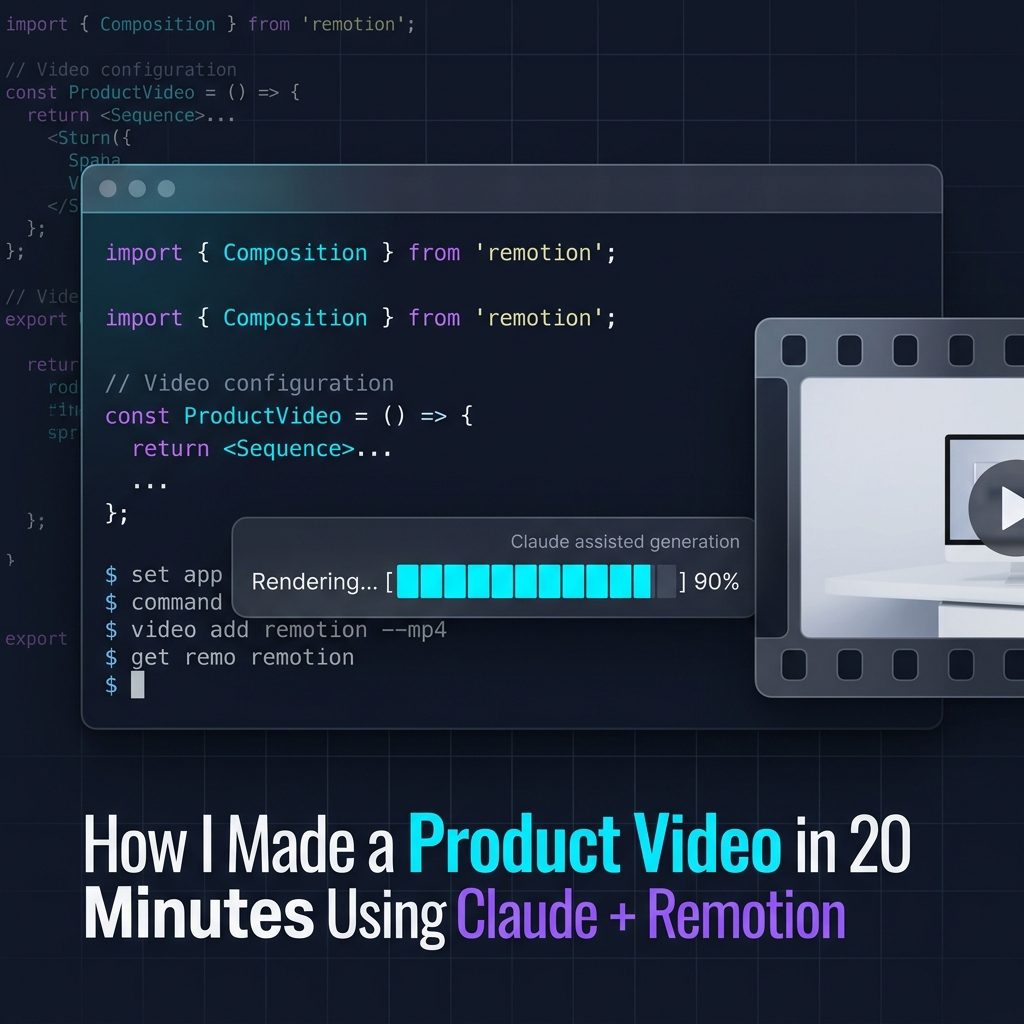
I used to dread making product videos. Open Premiere, drag clips, tweak keyframes, export, wait, realize something's off, do it again. Hours gone for a 30-second result.
Then I found a better way: write the video like code, and let AI write the code for you.
This is the Claude + Remotion workflow. Here's exactly how it works.
What is Remotion?
Remotion is a library that lets you create videos using React. Instead of a timeline, you write components. Instead of keyframes, you write spring animations. And instead of exporting from a GUI — you run one terminal command.
The result is a real MP4. 1080p or 4K. No watermark. No quality loss.
Where Claude comes in
Remotion is powerful, but writing animation logic from scratch takes time. That's where Claude changes everything.
You describe what you want in plain English. Claude writes the Remotion code. You review, tweak if needed, and render.
That's the full loop.
Step-by-step: set it up in under 20 minutes
Step 1 — Scaffold a Remotion project
Open your terminal and run:
npx create-video@latest
Follow the prompts. Choose a blank template. You'll get a working React project with Remotion already configured.
Step 2 — Open Claude and describe your video
Go to claude.ai and paste a prompt like this:
"I'm using Remotion. Create a 15-second product demo composition. Fade in a logo at the start using a spring animation, then animate a headline sliding up, and end with a CTA button appearing. Use
useCurrentFrameandspringfrom Remotion."
Claude will generate a complete React component — ready to drop into your project.
Step 3 — Replace the default composition
Copy the code Claude gave you and paste it into src/MyComposition.tsx (or whatever your entry file is). Import any missing Remotion hooks at the top if needed.
Step 4 — Preview in the browser
Run:
npx remotion studio
Remotion opens a browser preview where you can scrub through every frame. If something looks off — go back to Claude, describe the issue, get a fix in seconds.
Step 5 — Render to MP4
When you're happy with the result:
npx remotion render src/index.ts MyComposition out/video.mp4
That's it. A production-ready MP4 lands in your out/ folder. Post it straight to TikTok, Instagram Reels, YouTube Shorts, or anywhere else.
Why this workflow wins
The magic isn't just speed — it's iteration speed. With a traditional editor, every change costs minutes. With Claude + Remotion, you describe a change in one sentence and have new code in seconds.
Want the headline to be bigger? Say so. Want a different easing curve? Say so. Want to add a progress bar at the bottom? Say so.
No clicking through menus. No hunting for the right panel. Just conversation.
The result
The video above was made with exactly this workflow. From blank project to final MP4 — 20 minutes.
If you're a developer who needs to make product videos, explainers, or social content — stop fighting video editors. Write it like code, describe it to Claude, and ship it.
Full stack: remotion.dev + claude.ai